
Administration
Here, all the settings related to administration of MailDepot system are described.
You can control mail archiving process, and change settings for mail server, etc at Administration screen.
Start/Stop Mail Archiving
If you click on "Start/Stop Mail Archiving" from the menu, the current status of mail archiving process is displayed as "Started" or "Stopped"
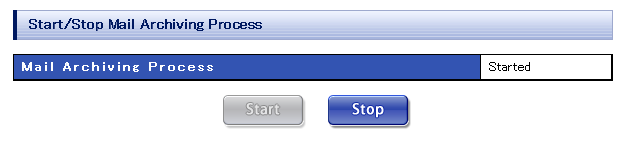
Using this screen, you can start/stop the mail archiving process.
The mail archiving process will be started by clicking on the "Start" button,
And the mail archiving process will be stopped by clicking on the "Stop" button.
Please note that alerting process, daily processing and monthly processing will be executed
only if the mail archiving process has been started.
Hence, if the mail archiving process has been stopped, reports such as traffic summary, rankings, etc. will not be updated,
and no alert mails will be sent.
Mail Server Setup
Here, you can change the setting of SMTP server used when sending alert/notice mails, and setting of POP/IMAP server used when archiving mails.
Outgoing Mail Server (SMTP Server)
Change the settings for your SMTP server. Once the setting items are enetered, the settings will be changed by clicking on the "Update" button.
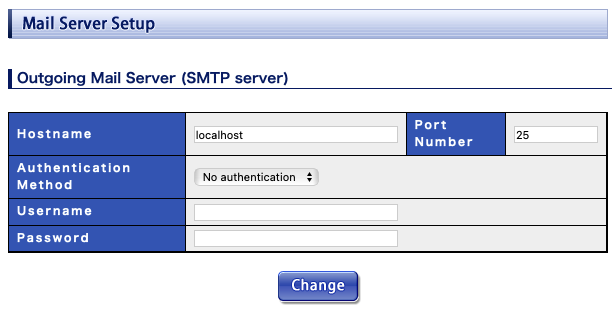
The meaning of the each item is as follows.
| Hostname | Enter the hostname of your SMTP server. "localhost" is used as default. |
|---|---|
| Port number | Enter the port number of your SMTP server. "25" is used as default. |
| Authentication method | Specify the authentication method in SMTP protocols.
By default no authentication is done.
|
| Username | Enter the account name if SMTP authentication is required. |
| Password | Enter the password if SMTP authentication is required. |
Add Incoming Mail Server (POP3/IMAP server)
Change the settings for your POP3/IMAP server. Once the setting items are entered, the settings will be registered by clicking on the "Add" button. You can see registered servers in "List of Incoming Mail Servers (POP3/IMAP servers)" displayed below the screen.
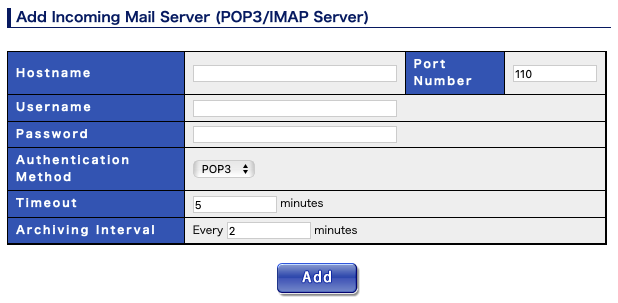
The meaning of the each item is as follows.
| Hostname | Enter the hostname of your POP3/IMAP server. |
|---|---|
| Port number | Enter the port number of your POP3/IMAP server. 110 for POP3 or 143 for IMAP is standard. |
| Username | Enter the account name for the POP3/IMAP server. |
| Password | Enter the password for the POP3/IMAP account. (The characters in this field are masked.) |
| Authentication method | Specify the authentication method in POP3 protocol. POP3 is used as default.
|
| Timeout | Specify the interval (in minutes) to terminate the session if your POP3 server does not respond for some time. The default is 5 minutes. If you enter 0, then the timeout process is not performed. Even if enter 0, timeout may occur at TCP/IP protocol layer. If your POP server may take much time to response, please set a large value here. In IMAP, the specification is applied as socket time-out. |
| Archiving interval | Specify the interval for mail archiving task. The default is 2 minutes. |
List of Incoming Mail Servers (POP3 servers)
The list of registered POP3 servers added by "Add Incoming Mail Server (POP3 server)"is displayed.
If setting items are edited, the settings can be changed by clicking on the "Update" button.
the registered POP3 server can be deleted by clicking on the "Delete" button.
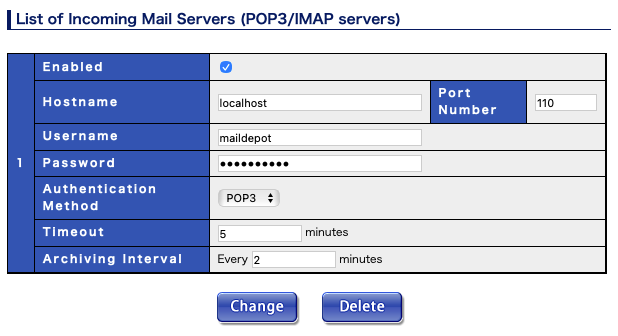
Other than "Available" field, the setting items are same as above mentioned in "Add Incoming Mail Server (POP3 server)".
System Settings
Change the setting for system configuration.
Settings for Mail Search
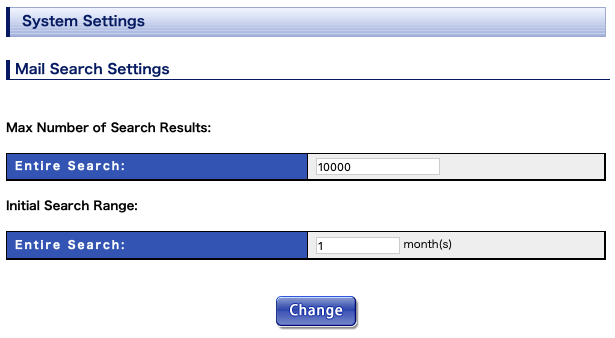
You can change the maximun search results and initial search periods. The default value of the maximun search results for entire search is set to 10,000, and the upper limiti is 1,000,000. The default value of initial search periods for entire search is set to 1 month, and the upper limit is 60 months.
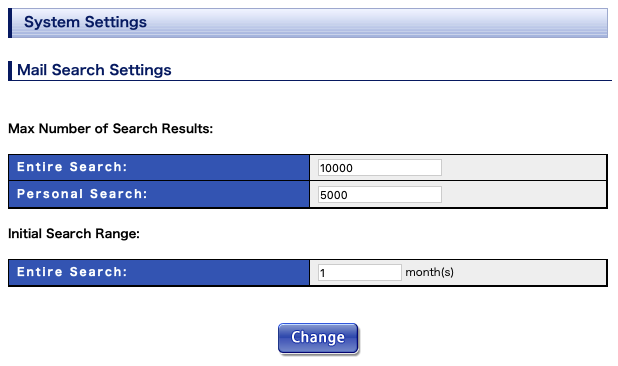
If Personal-Search Option License is enabled, you can change the maximun records for personal search. The default value of the maximun search results for personal search is set to 5,000.
Alert Settings
Set the mail address to send alerts, items to be monitored, etc.
Mail Addresses for Alerts
Specify the mail address of system administrator to whcih alerts are to be sent.
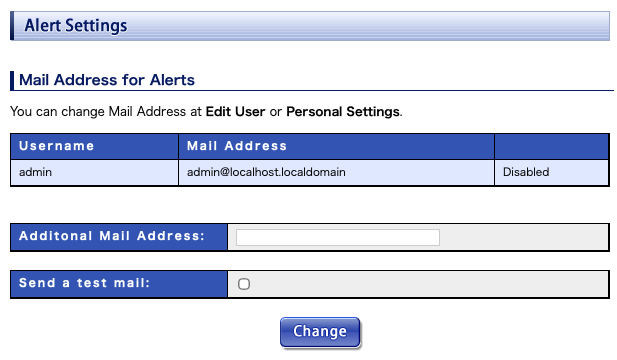
If alert is enabed, alert messages will be sent to that administrator. You can change these setting at Edit User or Personal Settings screen.
You can enter mail addresses delimited with comma character such as "foo@example.com, bar@example.com" in "Additional Mail addresses" field. In addition to the above system administrators, alert messages will also be sent to those mail addresses as well.
The changed settings will be reflected by clicking on the "Change" button.
If "Send a test mail" checkbox is checked when you click "Change", an alert test mail will be send to mail addresses that you set.
Alert Triggers
Specify the monitored items and threshold values to trigger alerts.
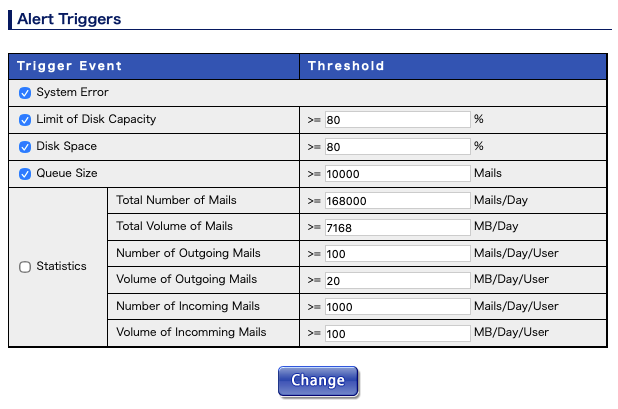
Send alert for monitored item if it's check box is checked.
When the item's value exceeds it's threshold value, an alert is sent.
Further, the alerts will also be recorded into syslog or operations log.
The changed settings will be reflected by clicking on the "Change" button.
System Abnormalitiy
If there is a possibility of any system abnormality, an alert is sent.
If the same trigger occurs continuously, the alert is sent out only if it goes by more than an hour from previous alert.
The meaning of the each item is as follows.
| System Error | When an error occurs in the system, an alert is sent out. |
|---|---|
| Limit of Disk Capacity | If the present disk usage rate is above a specified percentage of the logical disk capacity, an alert is sent out. The default is 80%. |
| Disk space | If the used physical disk space rate of each disk is above a specified percentage, an alert is sent out. The default is 80%. |
| Queue | When once mails are archived, if the number of mails accumulated in the POP3 server is above a specified number, then
an alert is sent out. The default is 10,000. |
Statistical Abnormalitiy
When the number/volume of sent/received mails become abnormally large during a day, an alert is sent out.
If the same trigger occurs continuously, the alert is sent out only if it goes by over a day from previous alert.
The meaning of the each item is as follows.
| Total Numbers of Mails | If the total number of sent/received mails in a day exceeds a specified number, an alert is sent out. The default is 168,000 mails/day. |
|---|---|
| Total Volume of Mails | If total volume of sent/received mails in a day exceeds a specified value, an alert is sent out. The default is 7168MB (7GB)/day. |
| Number of Outgoing Mails | If the number of mails sent by a particular user in a day exceeds a specified number, an alert is sent out. The default is 100 mails/day. |
| Volume of Outgoing Mails | If the total volume of mails sent by a particular user in a day exceeds a specified value, an alert is sent out. The default is 20MB/day. |
| Number of Incomming Mails | If the number of mails received by a particular user in a day exceeds a specified number, an alert is sent out. The default is 1,000 mails/day. |
| Volume of Incomming Mails | If the total volume of mails received by a particular user in a day exceeds a specified value, an alert is sent out. The default is 100MB/day. |
Sender address of alert mail
The sender address for alert mail is automatically set in following configuration file by MailDepot installation script.
| filename of configuration file | /opt/maildepot3/domain/DOMAIN_NAME/etc/maildepot.conf |
|---|---|
| name of parameter | alert_mail_address |
| initial value | maildepot@hostname_of_server |
The hostname of MailDepot server is used as domain of the mail address.
To change the sender address (because hostname of MailDepot server has changed or there are some other reason), change the value of "alert_mail_address" parameter in above configuration file.
If the configuration file is changed, the sender address of alert mail (known as From address) will be changed to the specified address.
Automatic Data Purging
To prevent shortage of disk space, old mail data can be automatically deleted under specified conditions.
If the check box of each item is checked, automatic data deletion become enabled. These are disabled by default.
The data deletion process is performed by daily processing.
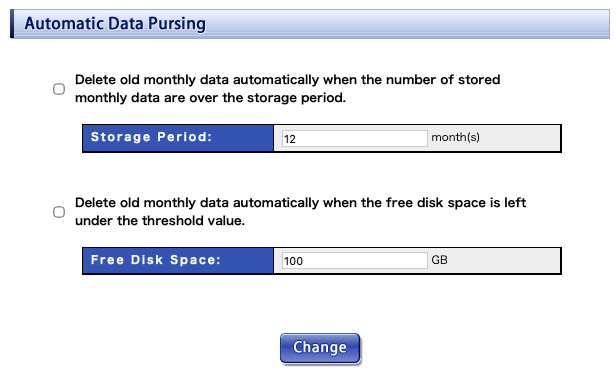
Delete old monthly data automatically when the number of stored monthly data are over the storage period.
When the number of stored monthly data excluding the current month are over the storage period, the old mail data (starting with the oldest) will be deleted.
The current month is not included in the storage period.
For example, if the storage period is specified as 12 months, mail data for current month and data data for the last 12 months will be kept.
Mail data to be deleted is prioritized in the order of "Offline" and "Online".
The default storage period is 12 months.
Delete the old monthly data automatically when the free disk space is left under the threshold value.
If the free disk space is left unser the specified free space, the past mail data (starting with the oldest) will be deleted every month except for data of current month until the free space comes above the specified value.
If there are multiple disks, the system will check the free space for each disk.
Mail data to be deleted is prioritized in the order of "Offline" and "Online".
Further if the status is the same, the items which backup status is "Backuped" will have high priority.
The default free space is 1GB.
System Log
The backend processes of MailDepot save log messages into syslog. You can see the syslog messages in Administration Console. The last 200 lines of syslog file are displaed.