
Administration Console Operation Manual
About this document
This document provides a summary of the functions of MailDepot Administration Console (Web administration screen). Please refer this document if you want to know the detail about each functions and how to operate each functions in Administration Console.
Overview of Administration Console
In addition to the Mail search function, Report function and Log function, Administration Console offers various management functions for the MailDepot system.
- Mail Search
- Search archived mails in MailDepot using various conditions. You can also download and forward searched mails.
- Reports
- Display all kinds of reports.
- Logs
- Display all kinds of log information about MailDepot.
- Data Management
- Provide data backup and restore functions.
- Administration
- You can easily change settings for mail archiving and settings for alerts.
And more, you can start and stop mail archiving process. - User Settings
- You can easily manage user accounts, and change personal settings.
After logging in into Administration Console, perform these operations by selecting them from the menu.
Access Permission
The Administration Console defines five groups to contol the access privilege for each user, and each user must belong to one of these groups.
The following functions are allowed to operate for each group.
| Functions | Access Right | ||||||
|---|---|---|---|---|---|---|---|
| administrator | operator | manager | monitor | auditor | user | ||
| Mail Search | Entire Search | ✓ | ✓ | ||||
| Personal Search | ✓ | ✓ | ✓ | ||||
| Reports | ✓ | ✓ | ✓ | ✓ | ✓ | ||
| Logs | ✓ | ✓ | ✓ | ✓ | ✓ | ||
| Data Management | ✓ | ✓ | |||||
| Administration | Start/Stop Mail Archiving | ✓ | ✓ | ||||
| Mail Server Setup | ✓ | ✓ | |||||
| System Settings | ✓ | ✓ | |||||
| Alert Settings | ✓ | ✓ | |||||
| Disk Management | ✓ | ✓ | |||||
| Automatic Data Purging | ✓ | ✓ | |||||
| User Settings | Registered Users | ✓ | ✓ | ✓ | |||
| Register New User | ✓ | ✓ | |||||
| Personal Settings | ✓ | ✓ | ✓ | ✓ | ✓ | ✓ | |
| Display Settings | ✓ | ✓ | ✓ | ||||
The user created in installation procedure is assigned to administrator group, and can operate all functions. You can change the group of user at User Settings screen in Administration Console. Further more, you can assign group for new user with md_useradd command by using "-g" options.
How to access
To access Administration Console, enter the following URL in the address location of your Web browser. If you have changed the port number of MailDepot http server, append [:port-number] after the hostname.
http://hostname_of_maildepot/name_of_domain/
You have to specify the name of domain as "name_of_domain". The installation script of MailDepot creates an initial domain named "default" as default.
The "name_of_domain" can be omitted if Multi-Domain Option License is no installed.
On successful access, Login screen is displayed. On Login screen, enter the username and password for already registered user and login.
Screen component
When you log in to Administration Console of MailDepot, the following screen is displayed.
* The displayed contents are diffent by the group of user.
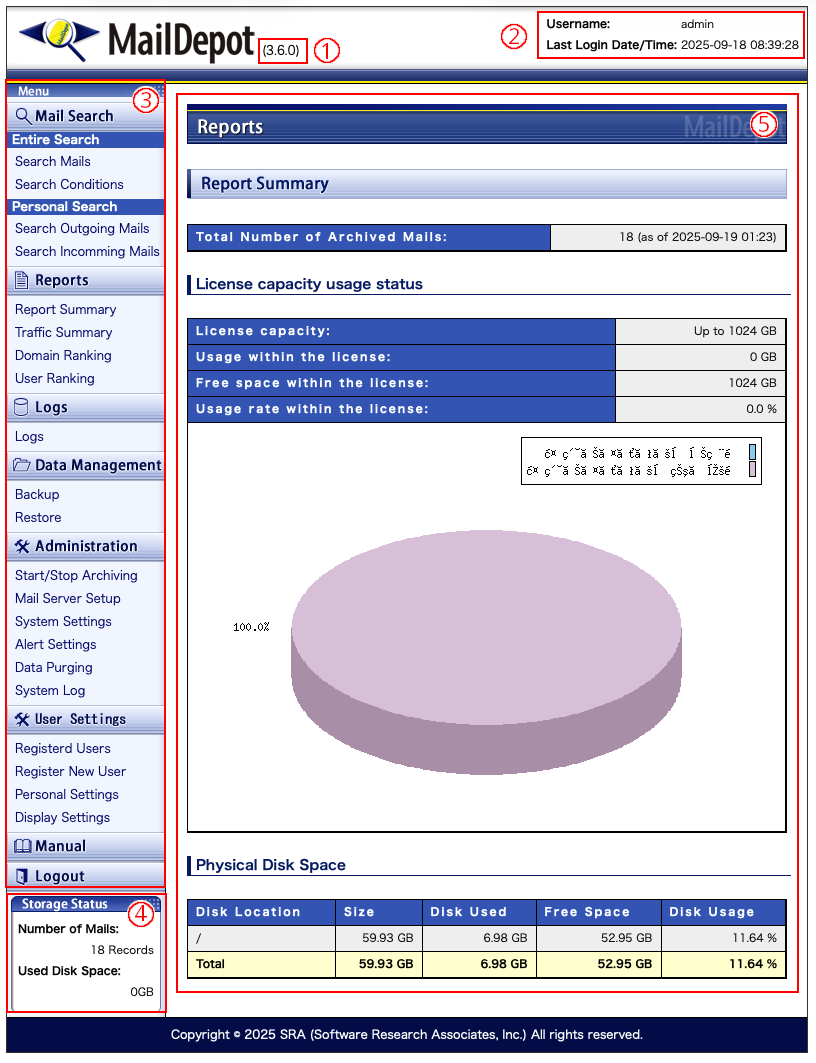
The explanation for each of the numbers on the screen is as follows.
| Number | Description |
|---|---|
| 1 | The version number for MailDepit is displayed. |
| 2 | Username and timestamp of last login for currently logged user is displayed. |
| 3 | Administration Console menu. Select item from the menu and move to the operation screens. |
| 4 | The total number of archived mails and the used disk space in MailDepot system are displayed. |
| 5 | The operation screen selected from the menu is displayed in this frame. |