
Data Management
Here, you can perform backup or restore for the archived mails.
Backup
MailDepot manages data of archived mails with monthly basis, and provide operations for monthly data such as backup, deletion.
List of Data
This screen display a list of the monthly data stored in the database.
You can select non-backuped data (all the items for which backup status is "Never") by clicking on the "Select all" button.
And you can show the lastest state of all data by clicking on the "Refresh" button.
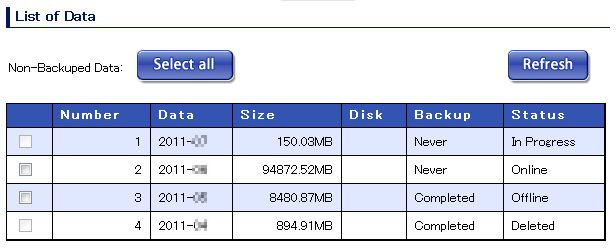
The meaning of the each item is as follows.
| Data | Year and month corresponding to monthly data. |
|---|---|
| Size | Size of monthly data. |
| Disk | if monthly data is saved in the disk. which has been added using "md_diskadd" command, the name of disk is displayed. |
| Backup | Displays the status of backup operation.
|
| Status | Displays the status of monthly data .
|
Data Operation
Select the target data from the list by checking the checkbox and select the operation shown below. By clicking on the "Execute" button, the confirmation dialog "Do you really wish to run?" is displayed, and the operation is executed after "OK" button is selected.
Since the backup and deletion processes may take much time to complete,
they will be executed in the background.
To reflect the results, click on the "Refresh" button after some time.
Further, operations cannot be supported on the data of the current month.
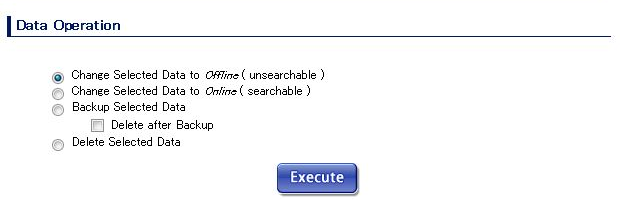
The meaning of the each item is as follows.
| Change Selected Data to Offline ( unsearchable ) | Exclude selected data from search targets. |
|---|---|
| Change Selected Data to Online ( searchable ) | Include selected data into search targets. |
| Backup Selected Data | Backup the selected data, and make backup file in the backup directory. If "Delete after Backup" is checked, delete selected data from the database after backup is complete. (deleted data can be restored using "Restore" screen.) |
| Delete Selected Data | Delete the selected data from the database. Please note that you cannot restore deleted data if the backup has not been saved. |
Note: After executing the "Data Operation" process, you can press the "Refresh" button to update mail count and used disk space displayed in Administration Console.
Restore
Restore the data which has been backed up.
The list of backup data is displayed at "List of Backup Data".
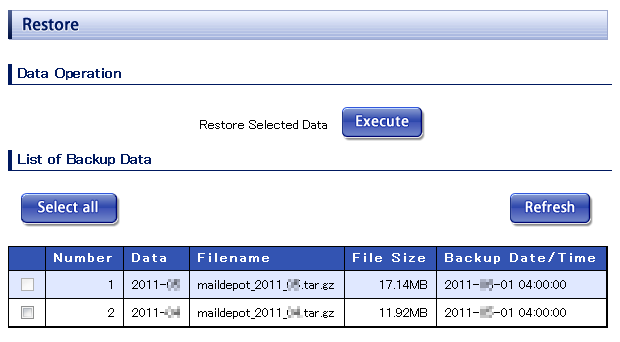
After selecting the data to restore from the list, restoration process will be started by clicking on the "Execute" button.
The status of restored data will become Offline (unsearchable).
If you wish to make it online (seachable), select the target data at "Backup" screen, then execute "Change Selected Data to Online".
You can select all data which are available to be restored by clicking on the "Select all" button.
And you can show the lastest state of all data by clicking on the "Refresh" button.
Only data that has been deleted from database are available to be restored.
The meaning of the each item is as follows.
| Data | Year and month corresponding to the data. |
|---|---|
| File name | Filename of the backup file. |
| File size | Size of the backup file. |
| Backup date/time | The date and time when the backup was performed. |
Restore into another MailDepot server
The following operations are required to restore backup file into another MailDepot server. You can apply this procedure to restore into re-installed MailDepot server on same hardware.
Restore md_authenticity.conf
The md_authenticity.conf file at following location holds the cryptography key which is used for non-falsification checking feature.
/opt/maildepot3/domain/name_of_domain/etc/md_authenticity.conf
The cryptography key in this configuration file is automatically generated at random in installation script of MailDepot, so the key is different from other servers. To restore backup files into another MailDepot server, you must copy md_authenticity.conf files from the server where backup files are created to the server where backup files will be restored. If you forget to copy this configuration file, non-falsification checking will be allways failed.
Copy backup files
Copy backup files to the backup directory of target server.
The backup directory is set as follows by default, and you can change it in Administration Console.
/opt/maildepot3/domain/name_of_domain/backups
After copying of backup files is completed, you can restore these files at Restore screen in Administration Console.