
User Settings
In User Settings, you can manage user accounts, and change personal settings.
Registerd Users
List of Users
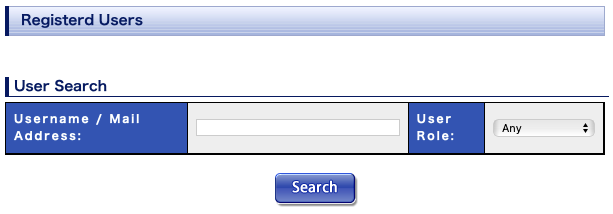
Display the list of registered users.
You can search users by username, mail address, user role.
Edit User
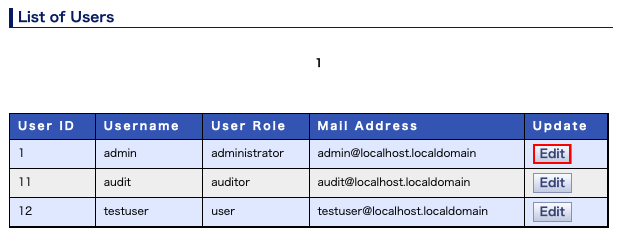
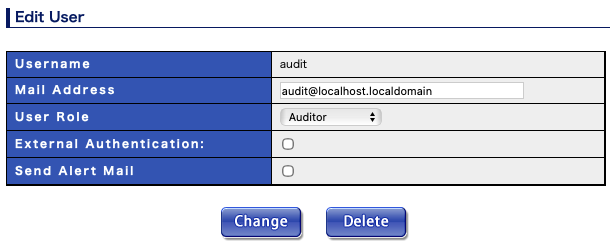
You can edit account settings by clicking "Edit" button in the list.
Search Filter
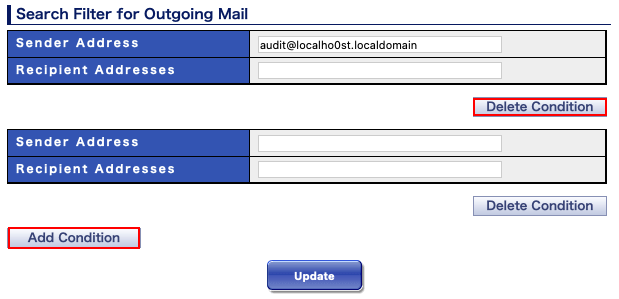
If you install Personal Search Option License, you can change the filter condition for personal mail search. By default, user's mail address is used for filter condition.
In the "Sender Address" and "Recipient Addresses" field, you can enter multiple mail addresses using white-space character as delimiter. If you enter multiple mail addresses, all mail addresses are used as filter condition with AND operator. If you want to set multiple mail addresses as filter condition with OR operator, press "Add Condition" button, and then enter additional mail address in the added field. press "Delete Condition" to remove unnecessary condition.
You can set full mail address or domain part of mail address (@abc.example.com) in "Sender Address" and "Recipient Addresses" field. If you set domain part of mail address, you can can restrict the searchable domain.
Delete User
You can delete user account by clicking "Delete" button at "Edit User" screen.
You cannot delete the user who is logged in.
Register New User
You can create new user on Administration Console, and change the setting of external authentication.
Installation script of MailDepot creates a initial account as administrator.
Create new user
Create new account on Administration Console.
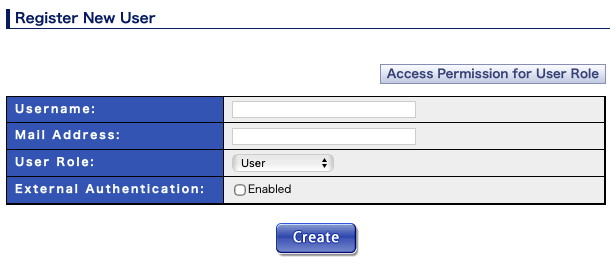
To create new account, enter username, mail address, and user role (group) for new user, and then press "Create" button.
The group "User" is selected as default. The username should be unique to all existing accounts.
See md_useradd to create new account by command line.
After the account for new user is created, a notification mail message is sent to entered mail address from Administration Console. In the notification mail, auto-generated password is printed, and new user can login into Administration Console with this password.
Settings for External Authentication
Administration Console of MailDepot can authenticate login user by communicating with existing Mail Server. Further more, new account can be created automatically when new user is successfully authenticated by external Mail Server.
To use external authentication feature, you must enter required fields in "Settings for External Authentication" section at "Register New User" screen on Administration Console.
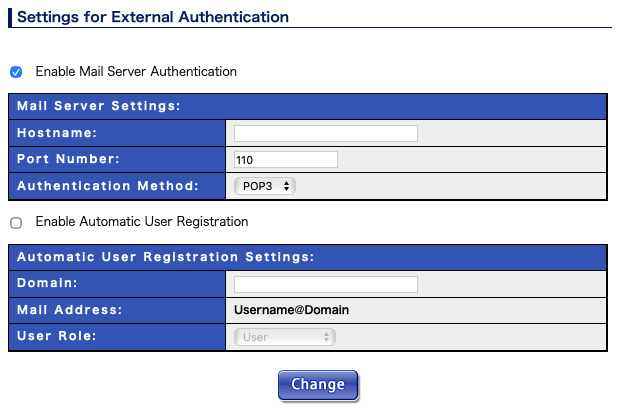
These are required fields in "Settings for External Authentication" section.
| Mail Server Settings: | |
|---|---|
| Enable Mail Server Authentication | Check this checkbox to use mail server authentication feature. |
| Hostname | Specify the hostname of existing mail server to authenticate user. |
| Port Number | Specify the port number of existing mail server to authenticate user. |
| Authentication Method | Select authentication protocol of existing mail server from POP3, APOP, IMAP. |
| Automatic User Registration Settings: | |
| Enable Automatic User Registration | Check this checkbox to use automatic user registration feature. |
| Domain | Spefify the domain of mail address |
| Mail Address: (read-only) | Show the mail address of automatically created user. |
| User Role | Specify the user role (group) of automatically created user. The group "User" is selected as default. |
If "Hostname" or "Port Number" field is empty, External Authentication feature will be disabled.
Personal Settings
Change user information/password for current login user.
Edit input fields, then press "Change" button to update.
User Information
Show account information for current user.

You can change account information on "Registered Users" screen in Administration Console.
Change Password
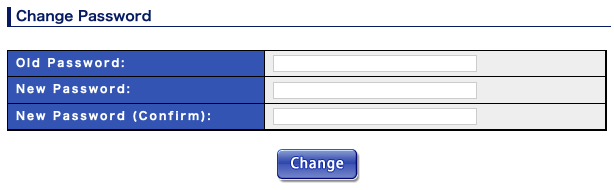
Change the password for current user. If external authenticaios is enabled for current user, the user cannot change own password in Administration Console.
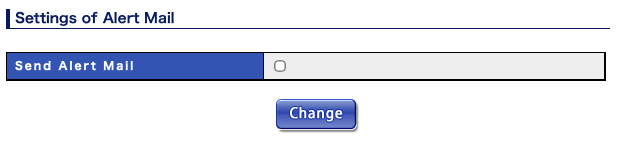
Settings of Alert Mail
Ask whether user want to receive alert messages. This settings is only displayed for privileged users (the menber of "administrator" or "operator" group).
Display Settings
User can uustomize the display of search results or ranking report.
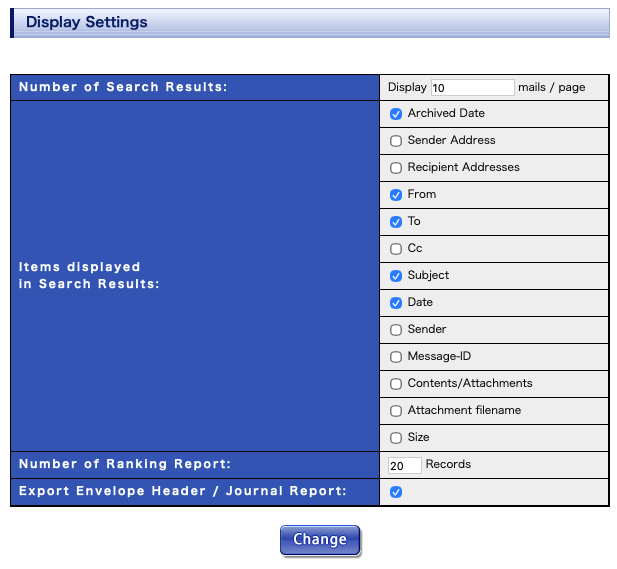
The meaning of the each item is as follows.
| Number of Search Results: | Specifies the number of mails to be displayed in a page of the search results at "Search Results" screen. By default, upto 10 are displayed. |
|---|---|
| Items displayed in search results: | Specifies the item to be displayed in the search results list. By default, "Archived date/time", "From", "To", "Subject" and "Date" are displayed. |
| Number of Ranking Report: |
⚹ This setting is only displayed for privileged users who is allowed to view ranking reports.
Specifies the number of records to be shown in "Domain Ranking" and "User Ranking" screen.
By default upto 20 are displayed. |
| Export Envelope Header / Journal Report: |
⚹ This setting is only displayed for privileged users who is allowed to access entire search.
This setting control whether to output envelope header or MS journal reports when display,
download, forward, and bulk download operation for searched mail. The default setting is on.
If user is not allowed to access entire search, the value of this option is always set to off.
|