Mail Search
MailDepot search archived mail messages with wide varieties of search conditions. MailDepot provides Entire Search operation to search all archived mail messages, and provides Personal Search operation to search only its own mail messages that are sent or received for current user who is loggged in into Administration Console.
To use the Personal Search function, Personal Search Option License is required to be installed. If Personal Search Option License is not installed, the menu item for Personal Search is not shown in Administration Console.
Entire Search
All archived mail messages in MailDepot are retrieved based on search conditions.
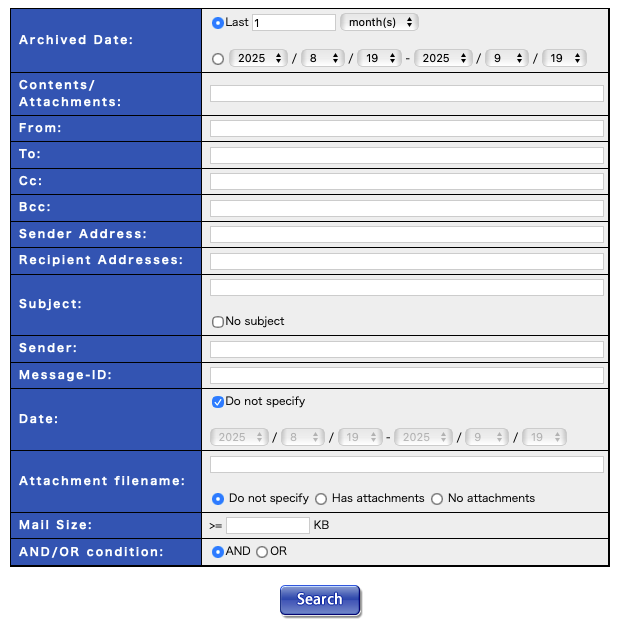
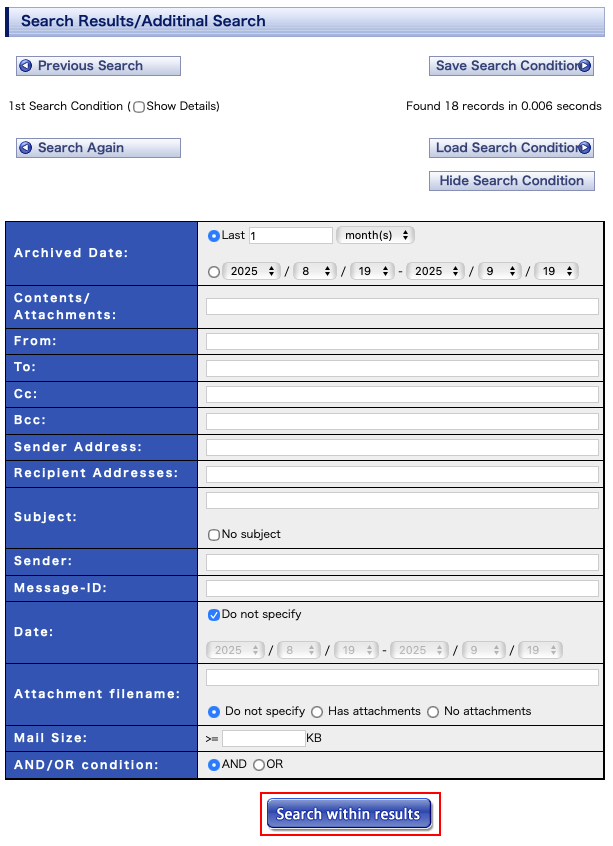
In Search screen, mails are retrieved by specifying various search conditions. After executing the search, the list of searched mails is displayed at "Search Results/Additinal Search" screen. Moreover, you can search within search results at "Search Results/Additinal Search" screen by specifying additional search conditions. And more, you can save search conditions, and search archived mail messages using saved conditions.
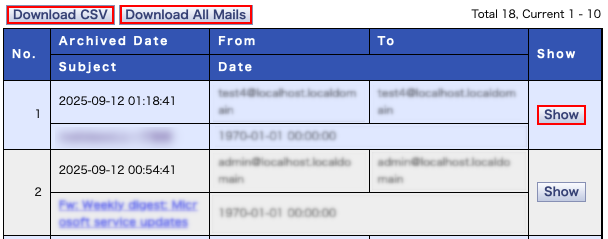
At "Search Results/Additinal Search" screen, you can display "Mail Details" screen to see the contents of mail message by selecting "Display" button in search results. At "Mail Details" screeen, you can see the all of contents (headers, body, attachments) of searched mail, and download it or forward it to a specified mail address. At "Search Results/Additinal Search" screen, you can also download the search results as CSV format, and download searched mails as ZIP format.
Search
How to use
- Click on "Search Mails" under "Entire Search" from the menu.
- Enter the search conditions in the input form on operation screen, and click on the "Search" button. To know how to specify search conditions, refer to following "Search Fields" section. Moreover, you can also search mail messages using search command. To know how to use search command, refer to "Search Command" section.
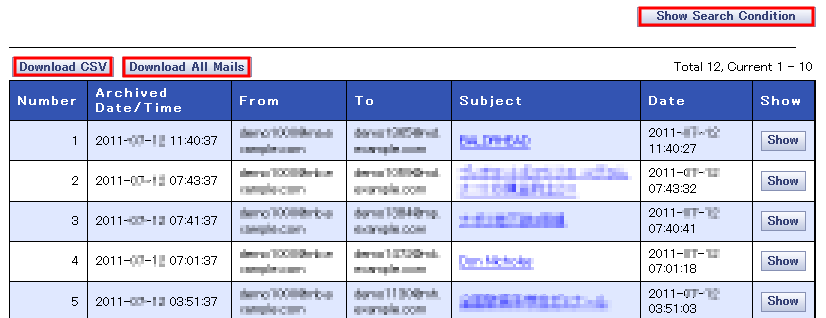
- The search results are displayed at "Search Results/Additinal Search" screen. You can display the contents of mail message by clicking "Show" button in search results. And, you can also download the search results as CSV format by clicking "Download CSV" button, and download searched mails as ZIP format by clicking "Download All Mails" button.

The number of results displayed in a list per page can be changed at "Personal Settings" screen in Administration Console.
Search String
In MailDepot, you can search for a string contained in the mail content or in the attachment files. This string search for the mail content and the attachment files is based on a word search in MailDepot. So, search string are divided into words when searching. Hence, if there are multiple words contained in the search string, it will become an AND search for each word. Moreover, a phrase search which specifies the sequence of words is not supported.
In the same input field, if you wish to specify multiple strings and perform an AND search, insert a space between the strings. By clicking on the "Search" button, mail messages containing all of the space-delimited strings are retrieved.

While searching the mail contents and attachment files in MailDepot, multiple strings can be specified in the same entry field by inserting "OR" between strings, you can perform an OR search. By clicking on the "Search" button, mail messags containing either of strings delimited by OR are retrieved.

If you enter string with leading "!" character, mail messages containing spcified string will be excluded.

Further, while searching the mail contents and attachment files, search string in the entry field are standardized according to the following rules, then differences between lower case and upper case letters are ignored while performing the search.
- Convert so-called FULL-WIDTH numbers and FULL-WIDTH alphabets to ASCII.
- Convert so-called HALF-WIDTH katakana to so-called FULL-WIDTH katakana.
At this time, katakana with voiced consonant marks (for softening the pronunciation) will become a 1 letter kana (Japanese syllabary). - Convert ASCII upper case letters to lower case.
Further, while performing a search other than of the mail contents and attachment files in MailDepot, it will become a partial string (substring) search, and only the differences between upper case and lower case letters are ignored during the search.
Search Fields
| Archived Date/Time | Search based on
time when MailDepot has done the archiving. Select either the upper (Last) or the lower radio button [Search from a range of dates]. If [Last] option is selected, mails are retrieved by going back the specified period from today. To specify the period, enter a value to the right of [Last]. Select the "Archived date and time" period from the selection boxes to the right of the input form. If you select [Search from a range of dates], specify any search period and search for mails. |
|---|---|
| Content/Attachments | Search words in mail contents or in attachment file(s). |
| From: | Search string in From header. |
| To: | Search string in To header. |
| Cc: | Search string in Cc header. |
| Bcc: | Search recipient address not listed in To/Cc header. |
| Sender Adreess: | Search sender address in SMTP envelope. You can search messages with full mail address or domain part of mail addess (@abc.example.com). |
| Recipient Adreesses: | Search recipients address in SMTP envelope. You can search messages with full mail address or domain part of mail addess (@abc.example.com). |
| Subject: | Search string in Subject header. If you check "No Subject", you can search mails that have no subject or emty subject. |
| Sender: | Search string in Sender header. |
| Message-ID: | Search string in Message-ID header. |
| Date: | Search date in Date header. To use this field, uncheck "Do not specify" checkbox and specify the search period. |
| Attachment filename: | Search string in attachement filename. To search attachement filename, check "Has attachments", and enter substring in attchment filename. If you check "No attachments", you can seach mails that have no attachments. |
| Mail Size: | Search mails for which total size is above a specified value. |
| AND/OR condition: | Select either AND or OR to specify search operator between fields. When searching using the strings "A" in the To: field, and "B" in the Cc: field, mails containing "A" in "To:" and "B" in "Cc:" are retrieved in case of AND search, and mails which either contain "A" in "To:" or "B" in "Cc:" are retrieved in case of OR search. |
Search Command
The description format of the search command has certain rules. Searching is possible by describing in accordance with these rules.

| Description format | Item name1:value,value [Item name2:value,value AND/OR search:value] * Description enclosed with [ ] can be omitted |
|---|---|
| Explanation of description rules | In the fields of the Search Command, go by the following description format to enter the description.
|
| Search example |
[to:buzz@sra.co.jp,fizz@sra.co.jp subject:MailDepot kind:and]
Search mails where [buzz@sra.co.jp] or [fizz@sra.co.jp] is contained in the [To] address, and the subject contains [MailDepot] |
Items for Search Command
| Item title | Item name | Value entry rules | Example |
|---|---|---|---|
| Archived date/time | register-date | In case of n periods from today: Integer >=1+period (Day: n-day, Week: n-week, Month: n-month) In case of date-range specification: YYYY/MM/DD-YYYY/MM/DD |
In case of n periods from today: register-date: 1-day register-date: 2-week register-date: 3-month In case of date-range specification: register-date: 2007/01/11-2007/02/01 |
| Mail content / Attachments: | body | - | body:mail archive |
| From | from | - | from:buzz@sra.co.jp |
| To | to | - | to:fizz,buzz |
| Cc | cc | - | cc:buzz@sra.co.jp,fizz@sra.co.jp |
| Subject | subject | - | subject:123,aeiou,abc |
| no-subject | true or false | no-subject:true | |
| Sender | Sender | - | sender:buzz@sra.co.jp,fizz@sra.co.jp |
| Message-ID | message-id | - | sender:buzz@sra.co.jp,fizz@sra.co.jp |
| Date | date | YYYY/MM/DD-YYYY/MM/DD | date:2007/01/11-2007/02/11 |
| Attached file name | attname | - | attname:Proposal.doc |
| has-attach | true or false | has-attach:true | |
| Mail size | size | 1 or more half-width numbers | size:1024 |
| AND/OR search | kind | [AND] or [OR] | kind:or |
Notice
- If the input field contains :(Colon) or ,(Comma), they are replaced by spaces and then searched. Therefore, you cannot search for these symbols themselves.
Additional Search
When a large number of mails have been retrieved as search results, you can search within the retrieved mails.
From the "Mail Search" screen, by clicking on the "Search" button after the search conditions are entered, the "Search Results" screen will appear. The search performed here is called "Additional Search". The method of searching is exactly the same as "Mail Search". However, the target for search will be the mail messages retrieved in the previous search.
"Additional Search" can be repeated until the number of search results becomes 0.
How to use
- Click on "Search Mails" from the menu, and search mails on "Mail Seaech" scrren.
- Enter the search conditions in the input form on "Search Results/Additinal Search" screen, and click on the "Search within results" button.
You can perform search within results by using Search Command. - The search results are displayed in the following "Search Results/Additinal Search" screen.
Display previous search conditions
To konw what kind of search conditions were used for search results, check the "Show details" checkbox in "Search Results/Additinal" screen.
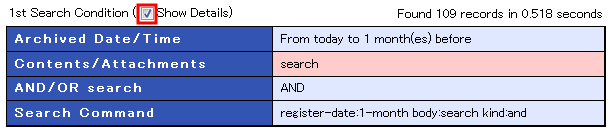
You can check the kind of search conditions you used for searching in a list format. The number of "Show details" check boxes increases according to the number of times searched. For example, if you have performed the "Search within results" 3 times, and then check the first search condition, you can check by putting a check in the check box to the right of "1st search condition" in the upper part of the screen.
Re-doing the "Search within results"
As a result of "Search within results", if the expected search results are not obtained, it is possible to re-do "Search within results".
If mails could not be retrieved by "Search within results", either return to the previous screen using the "Back" button of the browser, or enter search conditions once again in the same screen and click on the "Search within results" button. If 1 or more mails were retrieved, but are different from the expected results, either return to the previous screen using the "Back" button of the browser, or click on the "Previous Search" button. After that, re-enter the conditions and click on the "Search within results" button. And, you can click "Search Again" button to reset all search conditions.

Load/Save Search Conditions
You can save/edit/delete/load search conditions.Saving of search conditions
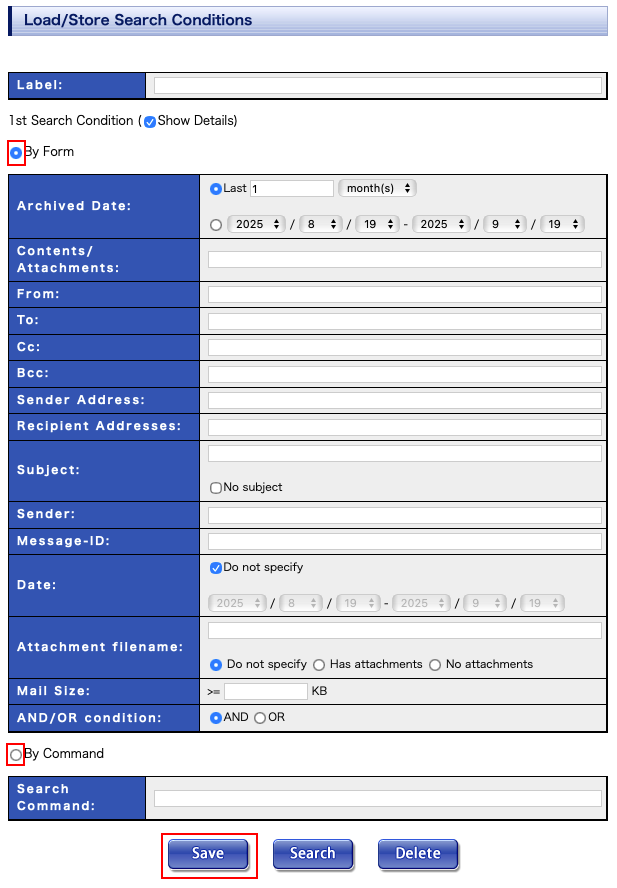
There are 2 ways to save search conditions. The 1st way is to save the search conditions after having performed a search, and the 2nd way is to save search conditions from the beginning without performing a search. Here, it is described both of the above save methods.
Save search conditions after search
- After searching mails, you may perform "Search within results" any number of times.
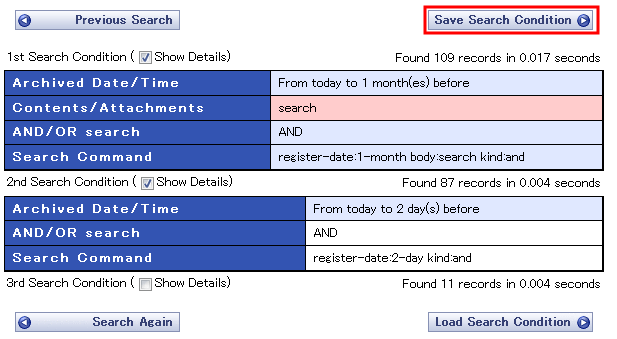
- After doing a search, click on the "Save Search Condition" button in "Search Results/Additional Search" screen.
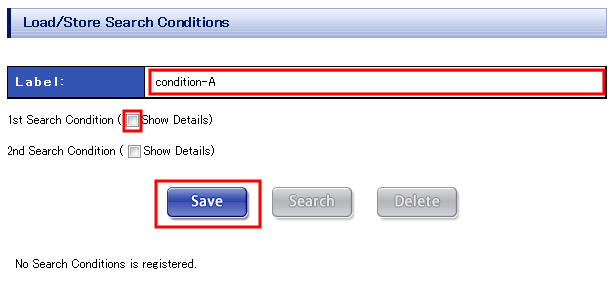
- After "Load/Save Search Conditions" screen is displayed, enter an easy-to-understand name into the "Label" field and click on the "Save" button. With this, the search conditions can be changed and saved. To make changes, click on the checbox of the numbered search condition that you wish to change, and enter values in any form.
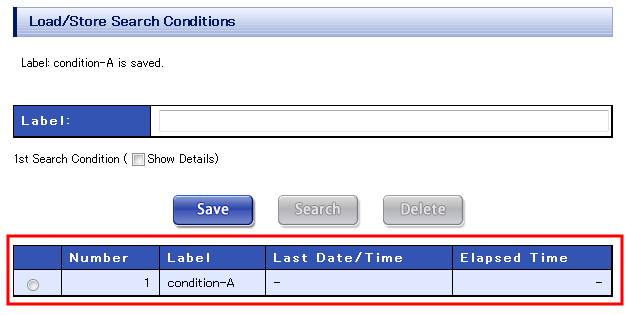
- In the list displayed in the lower part of the screen, if the label has been added, the registration of search conditions is complete.
Save search conditions without search
- Click on "Search Conditions" from the menu.
- After "Load/Save Search Conditions" screen is displayed, enter a easy-to-understand name into the "Label" field.
- Put a check in the checkbox to the right of "1st search condition", enter the search condition and click on the "Save" button. At this time, if you want to use "Search Command", select the "By command" radio button. By default, "By form" is selected.
- In the list displayed in the lower part of the screen, if the label has been added, the search conditions have been saved.
Edit search conditions
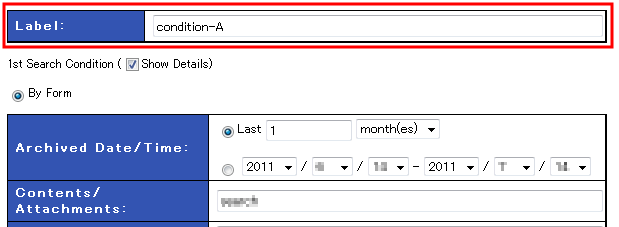
- Click on "Search Conditions" from the menu.
- Select the appropriate label displayed in the list in the lower part of the screen using the radio button.
- Confirm the label and enter the search conditions or the information to be changed like label, etc. then, click on the "Save" button, and confirm the change.

Search using search conditions
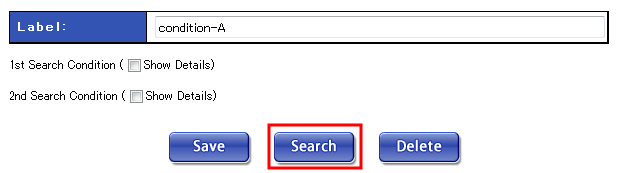
- Click on "Search Conditions" from the menu.
- Select the label displayed in the list in the lower part of the screen using the radio button.
- Confirm that the label field is the selected label, and click on the "Search"" button.
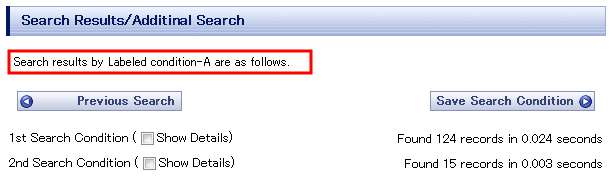
- The search results are displayed in the following screen.
Delete search conditions
- Click on "Search Conditions" from the menu.
- Select the appropriate label displayed in the list in the lower part of the screen using the radio button.
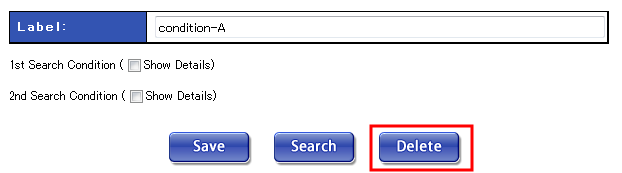
- Confirm that the label field is the selected label, and click on the [Delete] button.
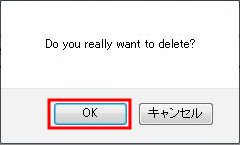
- The confirmation alert for deletion appears, and click on "OK" here.
- In the list displayed in the lower part of the screen, if the label has been deleted from the list, the deletion of the search conditions is complete.
Personal Search
Search only its own mail messages that are sent or received for current user who is loggged in into Administration Console.
Preconditions
You must install Personal Search Option License to use Personal Search feature.
Further more, you must setup Envelope Header before archiving mails.
Setting of Filter Condition
In personal search, MailDepot search archived mails with filter conditions that are defined for earch user. By default, user's mail address is used for filter condition, and user can search mail messages those one of envelope addresses (sender and recipients) matches user's mail address. You can change this filter condition on Search Filter form in Edit User screen called from Registerd Users screen.
How to use
- To search sent mails, click menu item "Search Outgoing Mails" under "Personal Search" menu.
To search received mails, click menu item "Search Incomming Mails" under "Personal Search" menu.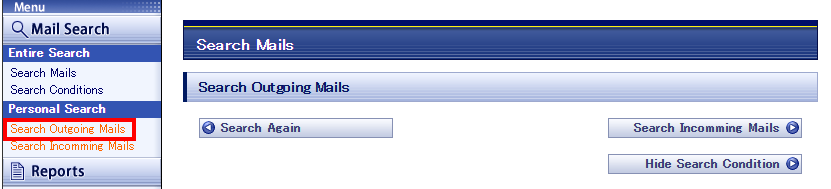
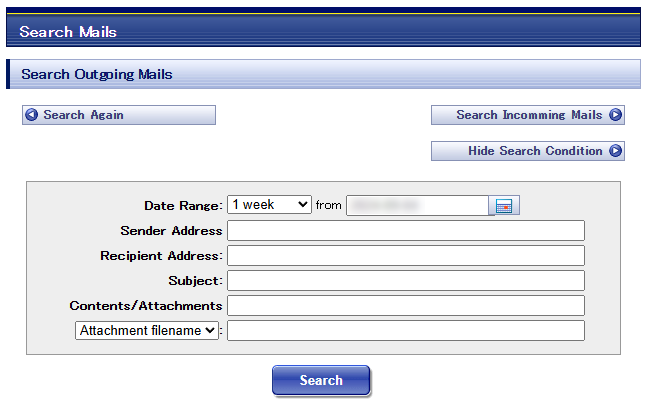
- Enter conditions in search form, then click "Search" button.
See next section "Search Fields" for more about form field.
- The list of searched mails are displayed after clicked "Search" button. You can display the contents of searched mail by clicking "Display" button in the list. (See Display mail details.) You can download the search results as CSV format by clicking "CSV Download" button. Further more, you can download all search results as ZIP format by clicking "Download All Mails" button.
Search String
The behavior of search string in personal search is same to entire search. See Search String in entire search for more about search string.
- If you enter multiple word with white-space character like "mail archive", mail messages that contain both words ("mail" and "archive") will be found. (AND condition)
- If you enter multiple word combined with "OR" operator line "mail OR archive", mail messages that contain either of words ("mail" or "archive") will be found. (OR condition)
- If you enter word with leading "!" character like "!archive", mail messages that contain words ("archive") will be excluded. (NOT condition)
Search Fields
| Date Range | Search only mails archived at specified range of date. Enter starting date and period (by pull-down menu) to specify the range. You can use date picker to enter starting date by clicking calendar icon. |
|---|---|
| Recipient Address | Search string for recipient addresses in To:, Cc: header. |
| Sender Address | Search string for sender address in From: Header. |
| Subject | Search string in Subject: header. |
| Contents/Attachments | Search words in message body and contents of attachments. |
| Attachment filename | Search string in attachment filename. |
| Sender | Search string in Sender header. |
| Message-Id | Search string in Message-Id header. |
| Mail Size | Search only huge mails larger than specified size in KB. |
Display mail details
To see the detailed contents of searched mail, follow the procedure given below.
- Search the mail using "Entire Search" or "Personal Search".
- From the list in the lower part of "Search Results/Additional" screen, click on the appropriate subject link or "Display" button in "Show" column.
- The "Mail Details" screen is displayed.
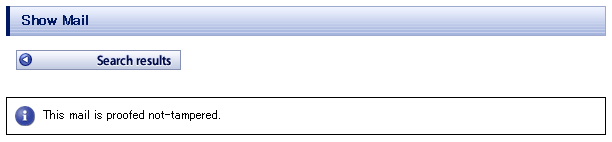
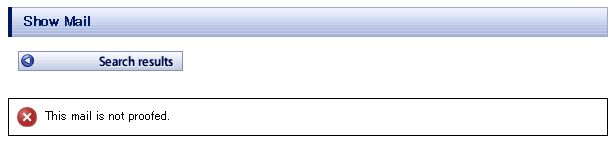
Note: When you perform to display a "Mail Details", there will be a check to see whether it has been tampered with. If there is a possibility that there has been tampering, the following error message will appear.
Download
The mail being displayed here, can be downloaded. The entire mail message or the attachment files can be downloaded.
- To download the entire mail message, click on the "Download" button in the lower part of the screen.
- To download a attachment files, click on the filename link.


Forward
You can forward mail message being displayed to a specified mail address.
- In the mail address field in the lower part of the screen, enter the mail address to which to send the mail. The default is the registered mail address of the logged in user (You can specify multiple mail addresses delimited by spaces.)
- After clicking on the "Forward" button, the mail will be forwarded.

CSV Download
You can download the list of searched mails by clicking "CSV Download" button displayed above search results.
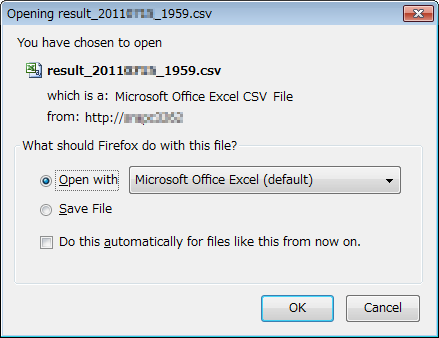
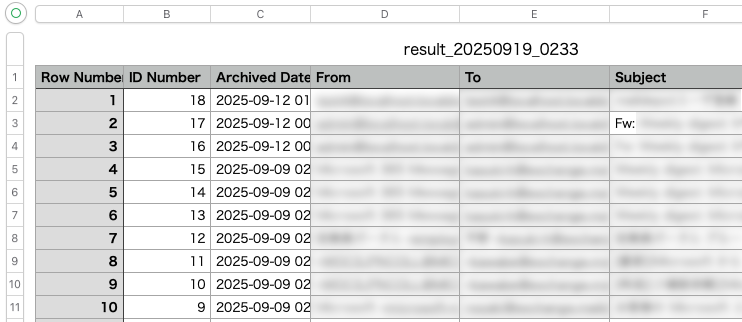
You can open downloaded CSV file using Microsoft Excel. The output columns in CSV file are same as displayed items in search results. You can select output columns on Display Settings screen.
ZIP Download
You can download displayed mails in one page of search results as ZIP format by clicking "Download All Mails" button displayed above search results.
After clicking "ZIP download" button, the following screen is displayed, and you have to wait until ZIP file is created.

After ZIP file is created, the following dialogue will be displayed. You may have to click "Download" button if this dialogue is not displayed automatically.
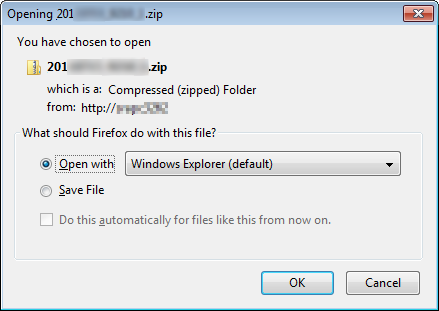
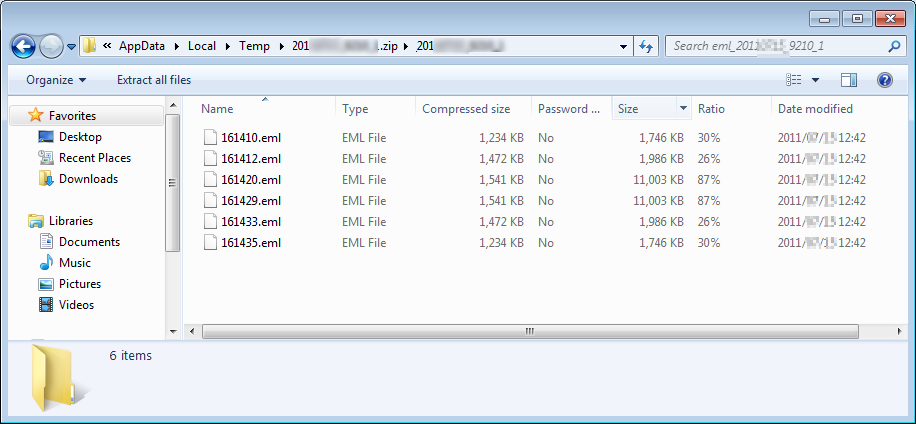
The downloaded ZIP file holds mail messages as EML format. You can open EML file using Microsoft Outlook.